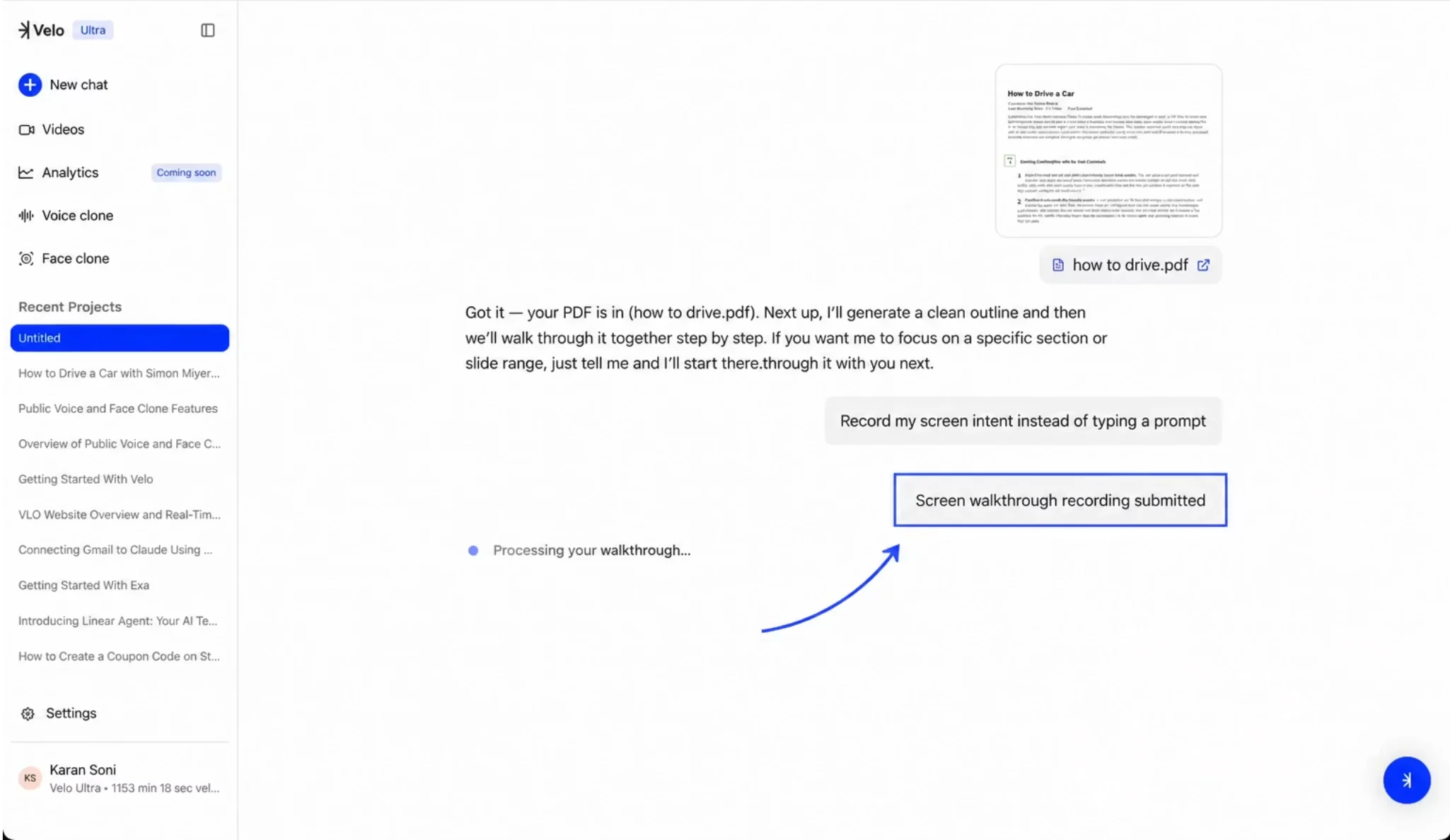
Initializing the Recording
Step 1: Select the option to Record my screen intent instead of typing a prompt within the chat interface. Step 2: Click Start recording to begin the setup process. This triggers the system to load your document or provided link into a workspace canvas.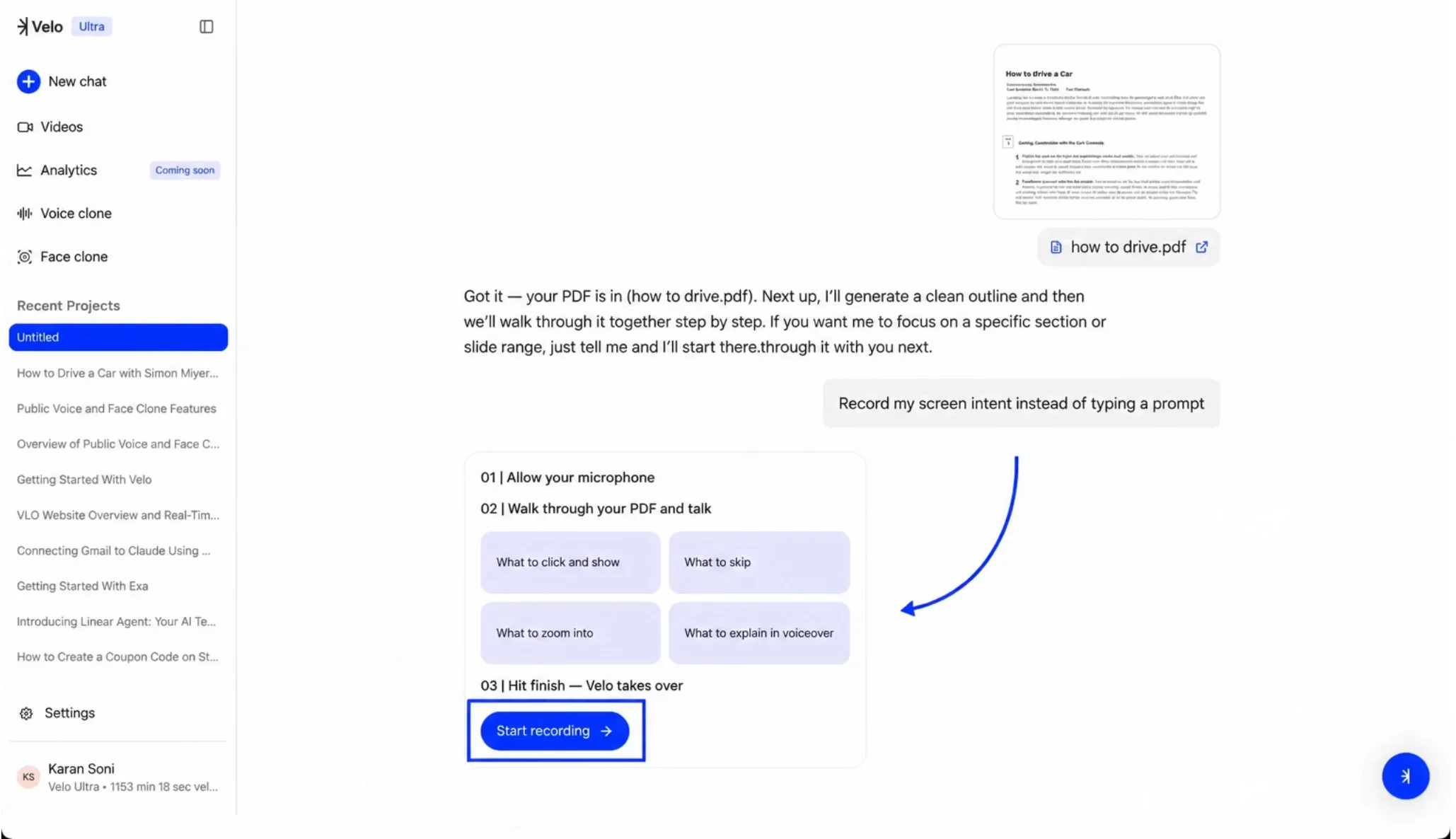
Setting Up the Session
Step 1: Once the document appears in the canvas, click Start Session to prepare the recording environment. Step 2: If prompted, open the browser extensions menu and select the Velo extension to grant necessary permissions. Step 3: Wait for the visual countdown to complete. You can click anywhere on the screen to pause the countdown if you need more time to prepare.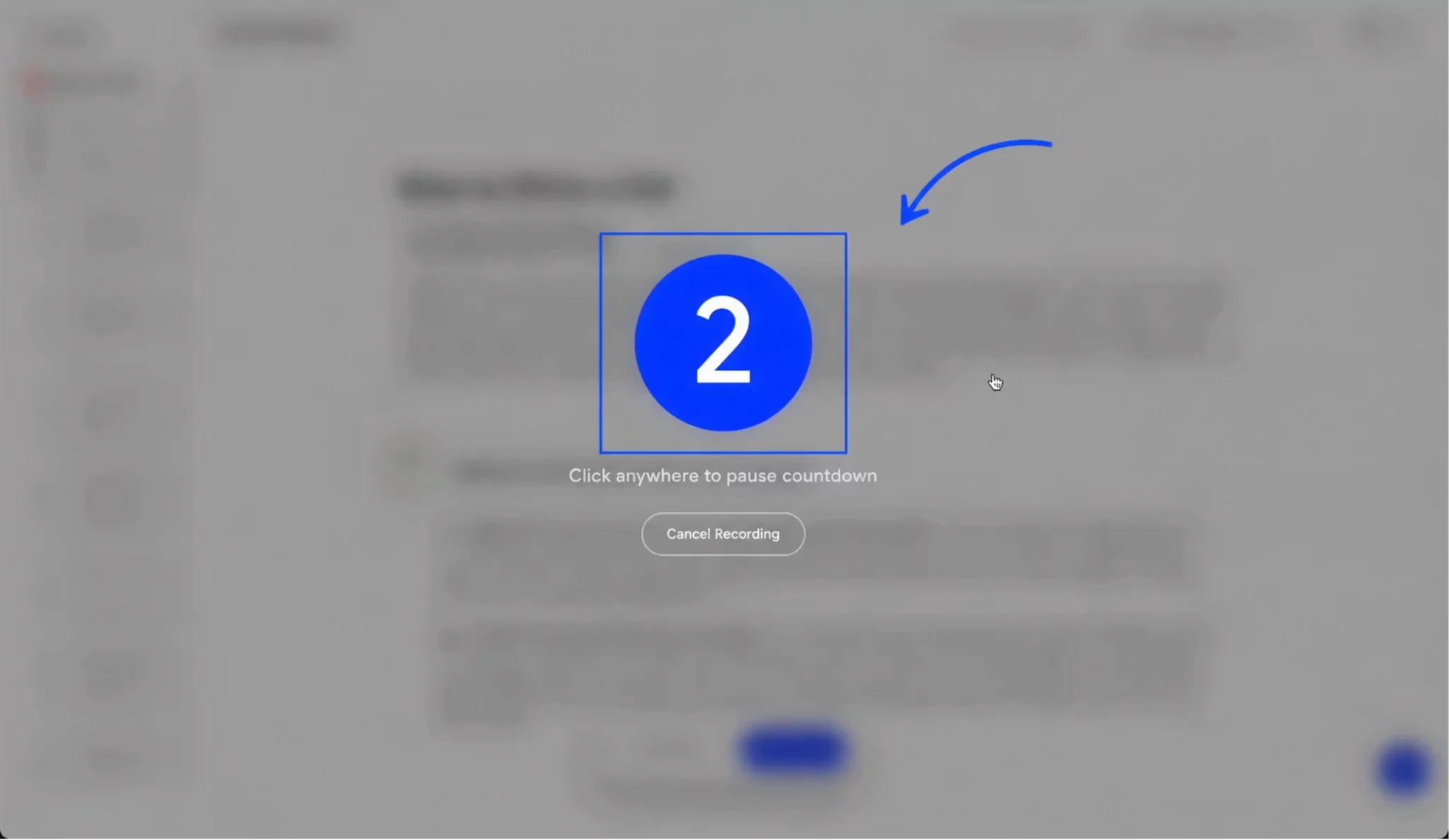
Narrating Your Intent
Step 1: Speak clearly to explain what you want the AI to capture - for example, provide a brief overview of the first two pages and specify which subsequent pages should be skipped. Step 2: Navigate through the document as you talk, ensuring your voiceover matches the sections you are referencing. Step 3: When finished, click “Finish Session” to stop the recording.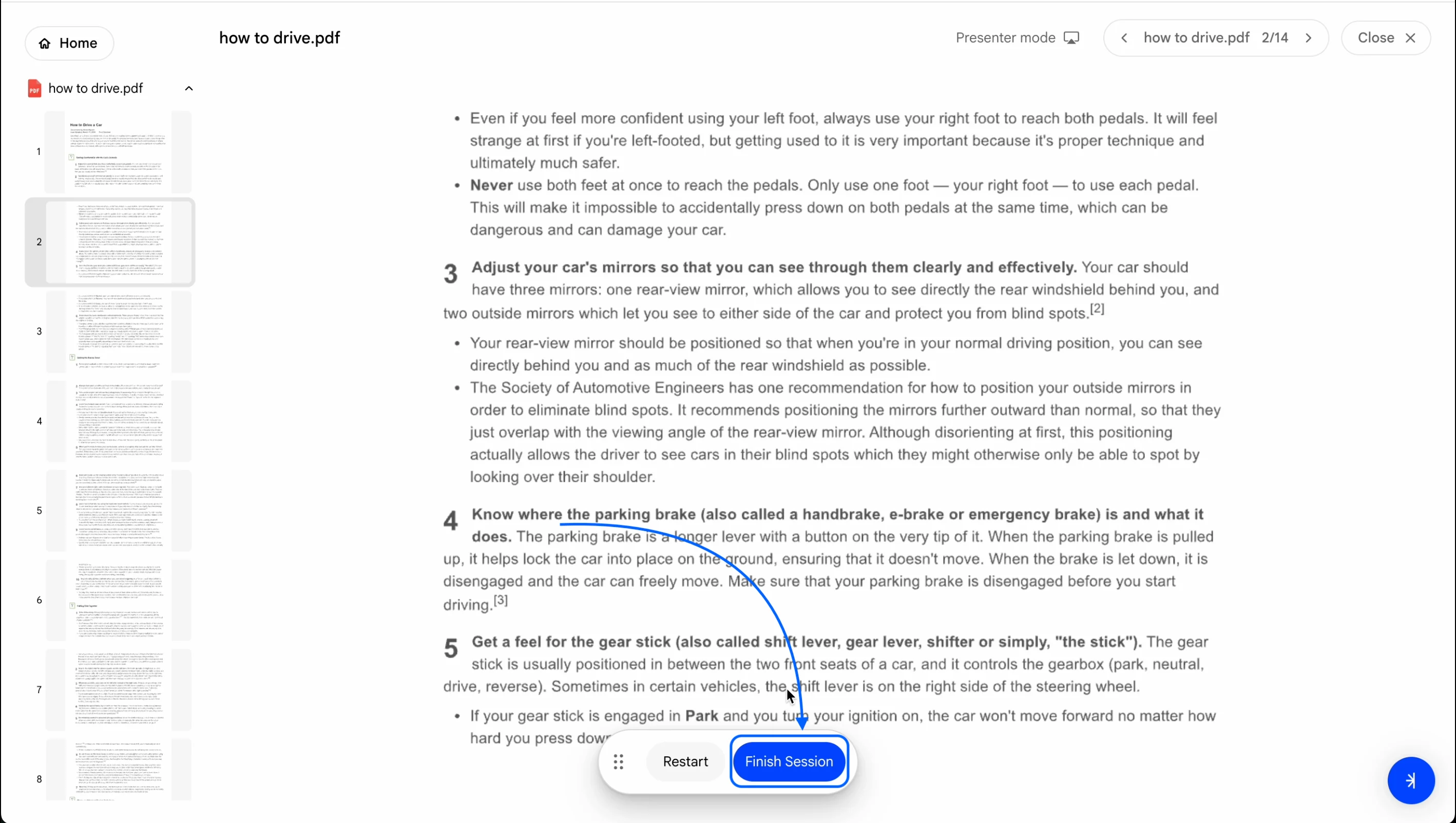
Processing the Walkthrough
After finishing the session, a modal will appear indicating Uploading recording… do not close the tab during this time. Once the upload is complete, the chat will display Processing your walkthrough….