Modifying Content
To edit existing text, click anywhere on the page and begin typing. You can update descriptions or rewrite sections to better align with your specific requirements.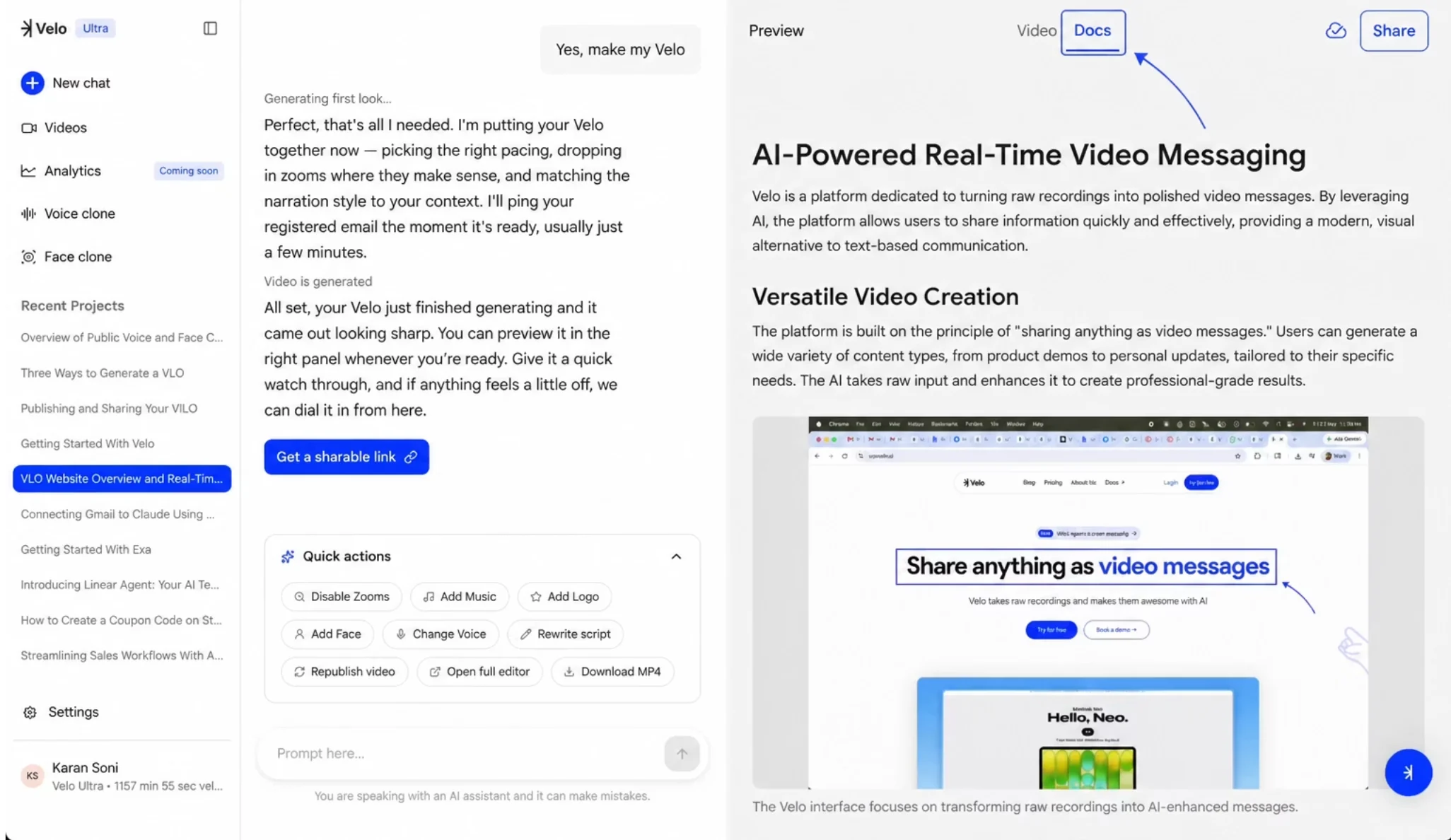
Adding Sections and Formatting
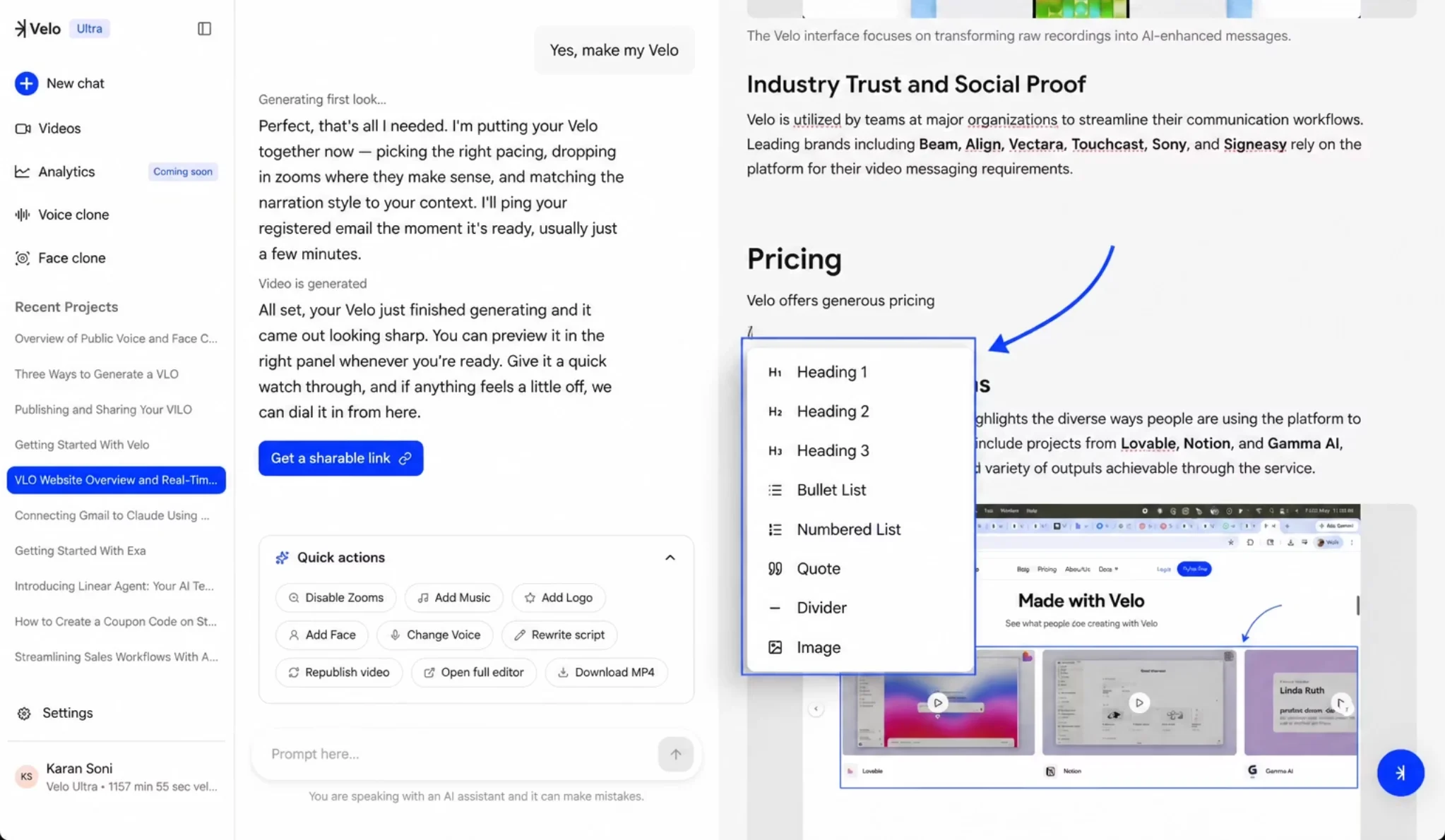
To introduce new sections or change the style of your content, use the command menu. Step 1: Create a new line and type a forward slash /. Step 2: Select a formatting option from the dropdown menu.Options include; Heading 1, Heading 2, and Heading 3 for document structure; Bullet List and Numbered List for sequential data; Code blocks for technical snippets; Quote for emphasis; and Divider to separate themes visually.to separate themes visually.
Inserting Project Screenshots
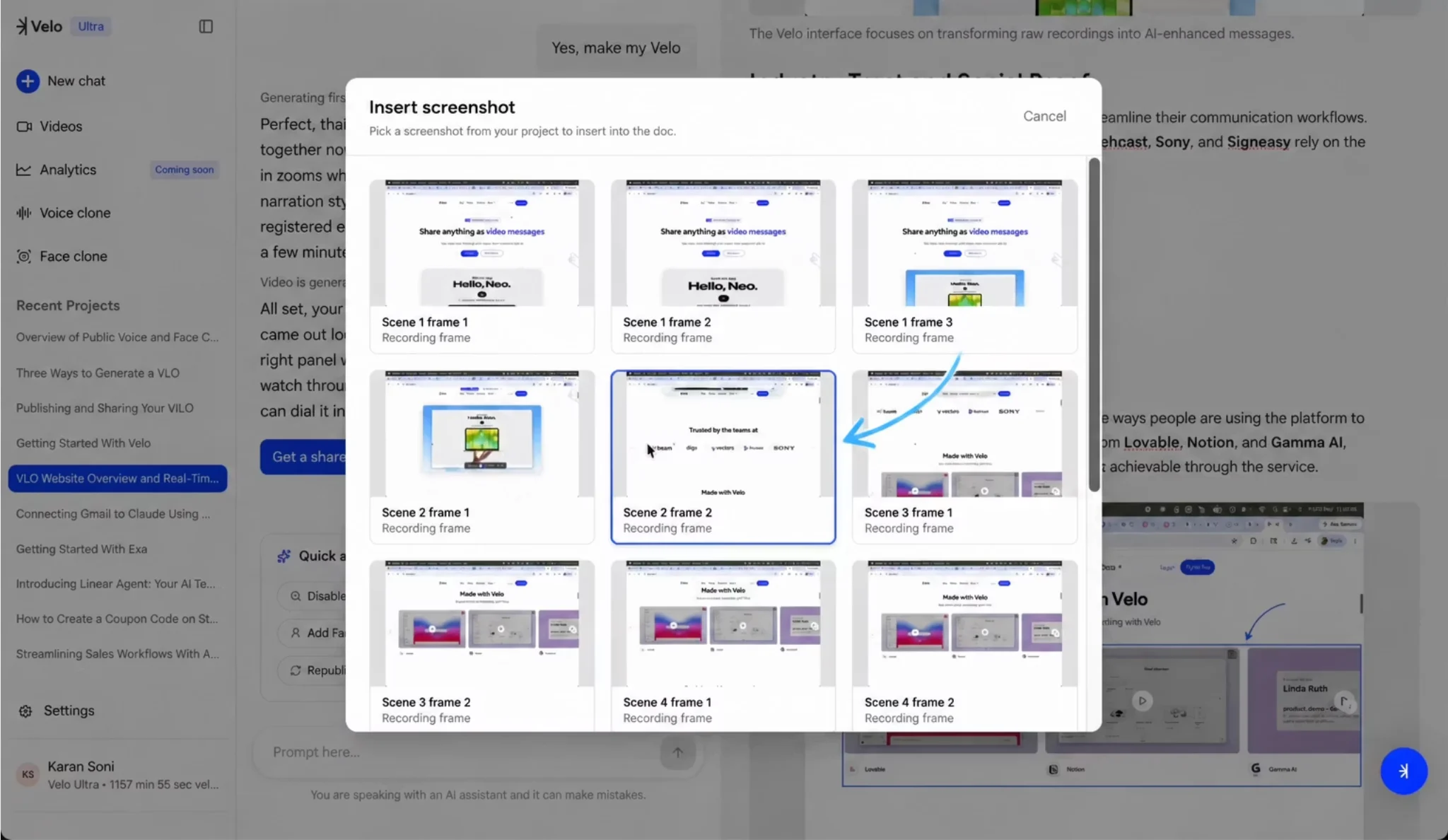
You can supplement your documentation with visual context by pulling screenshots directly from the video generation process. Step 1: Type/ and select Image from the menu.
Step 2: Browse the Insert screenshot gallery, which contains all frames captured during the Velo’s creation.
Step 3: Click a specific frame to embed it into your document.