Velo allows you to capture raw screen recordings and transform them into polished video messages using AI. By using the Chrome extension, you can configure audio and narration settings before capturing your screen for automated editing.

Configuring Your Recording

Step 1: Open the Velo Chrome extension from your browser toolbar. Step 2: Select your input device from the MacBook Air Microphone (Built-in) or other available microphone options.
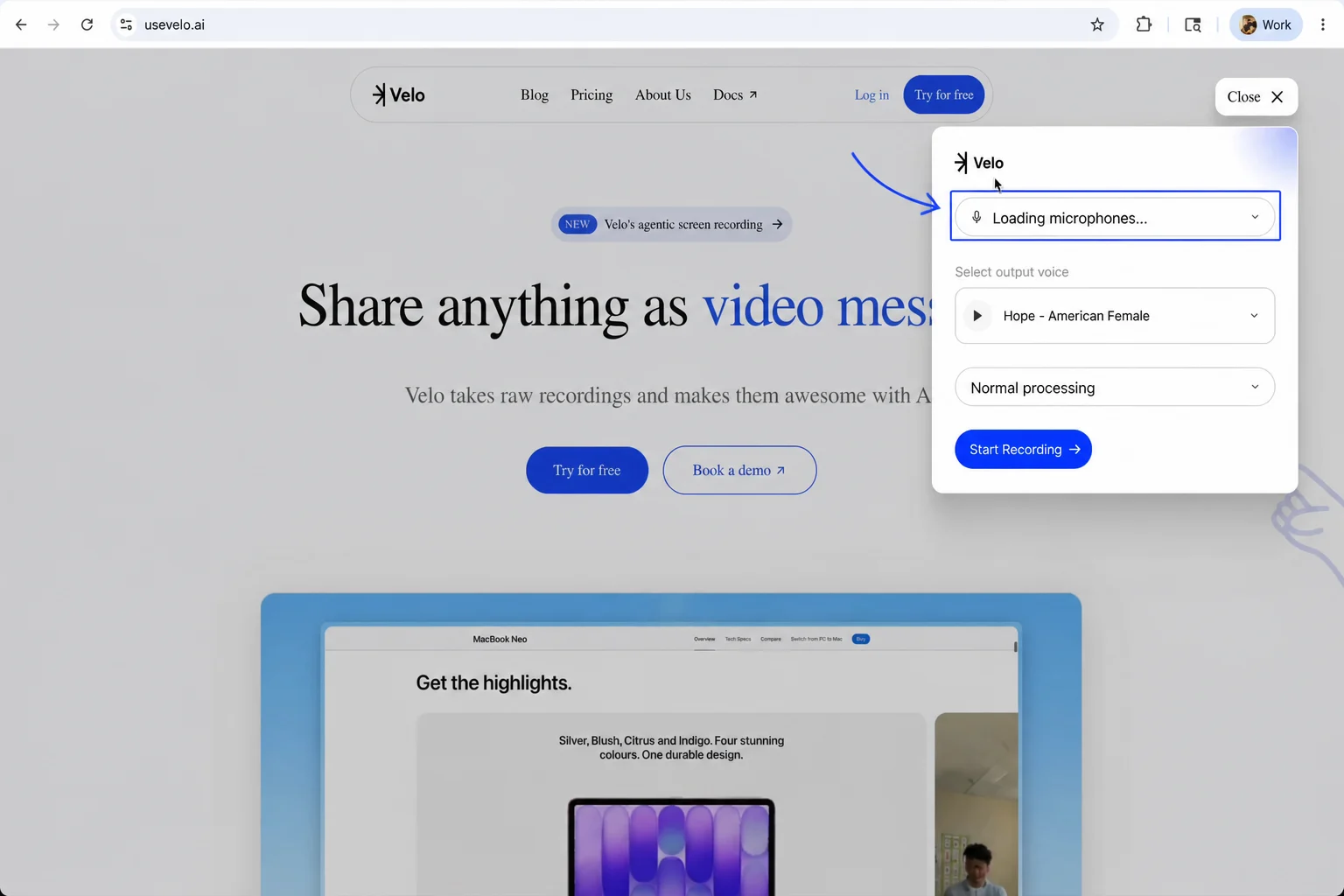
Velo extension settings
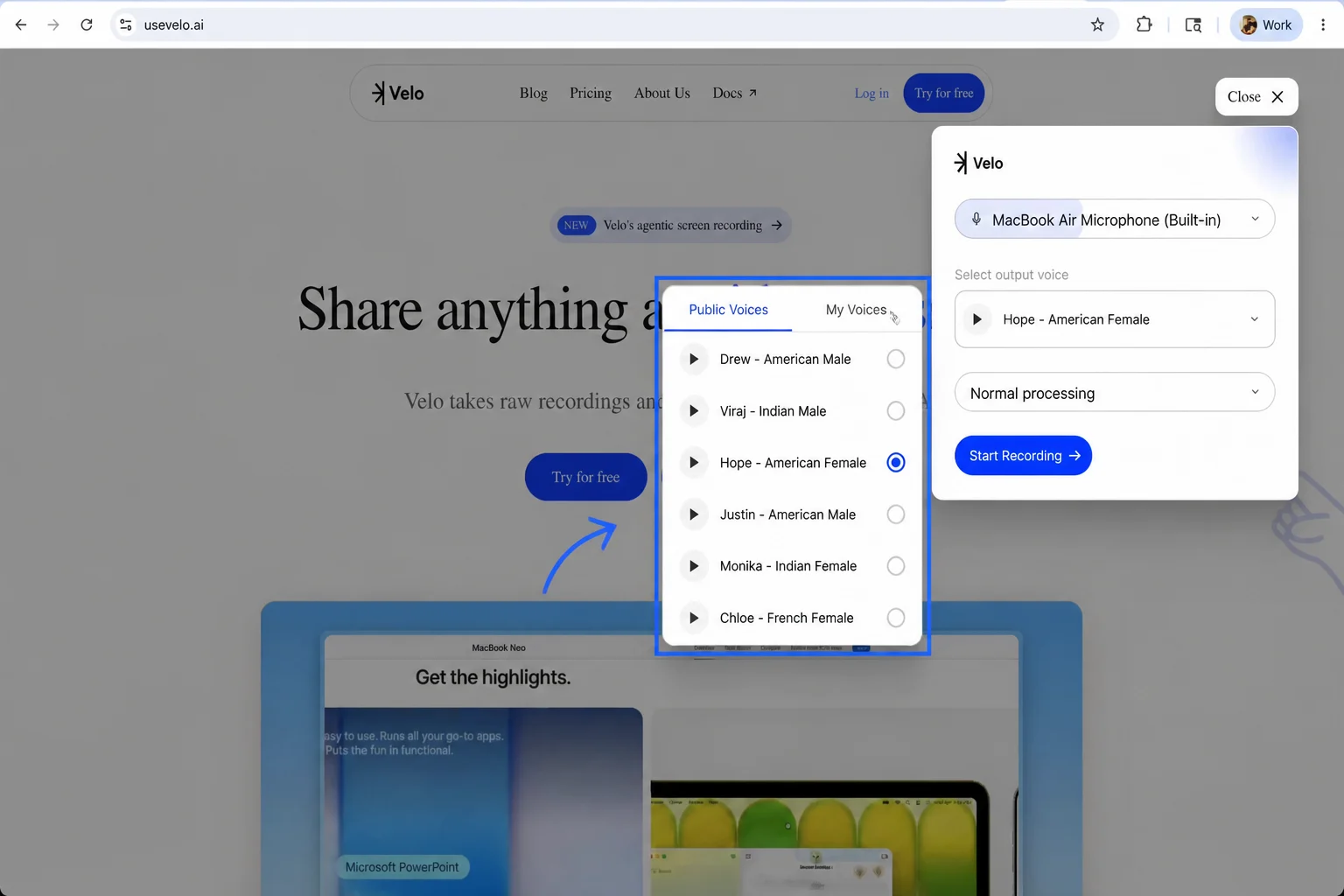
Step 3: Choose an AI narrator from the Public Voices list, or select a custom voice from the My Voices tab. Step 4: Choose between Normal processing for standard generation or Realtime processing for faster results.
Voice selection menu

Capturing Your Screen

Step 5: Select Start Recording to open the browser’s sharing dialog. Step 6: Navigate between the Chrome tab, Window, or Entire screen categories and select the specific content you wish to record. Step 7: Ensure Also share tab audio is enabled if you are capturing video with sound, then select Share.
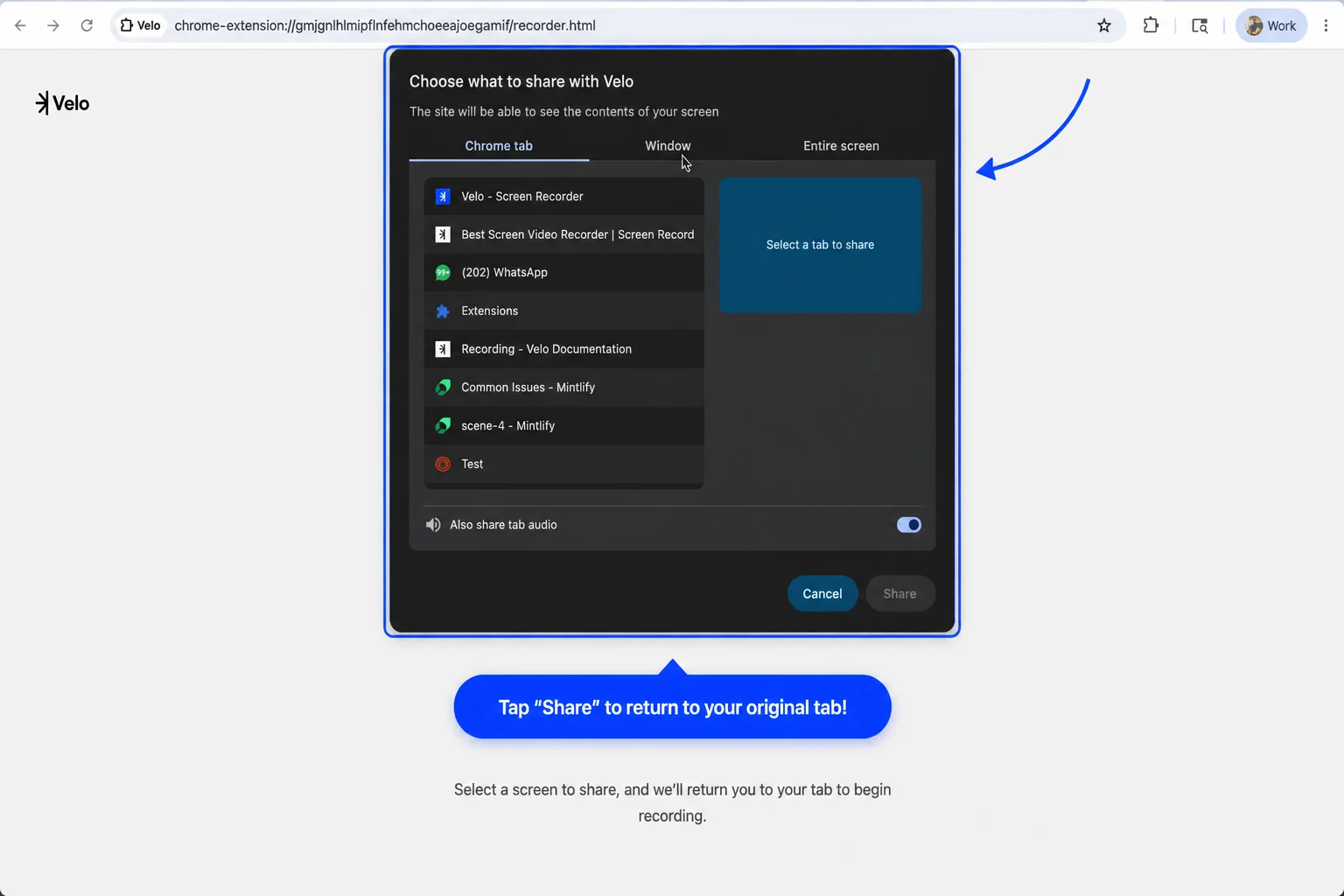
Source selection dialog
Step 8: Deliver your message after the three-second countdown finishes. Step 9: Select the Stop button on the recording controls or Stop sharing in the browser header to conclude the session and begin the upload.

Generating the Final Velo

Step 10: Monitor the upload progress on the automated status page while the recording is sent to the platform. Step 11: Once the recording opens in the chat interface, select Yes, make my Velo to trigger AI processing.
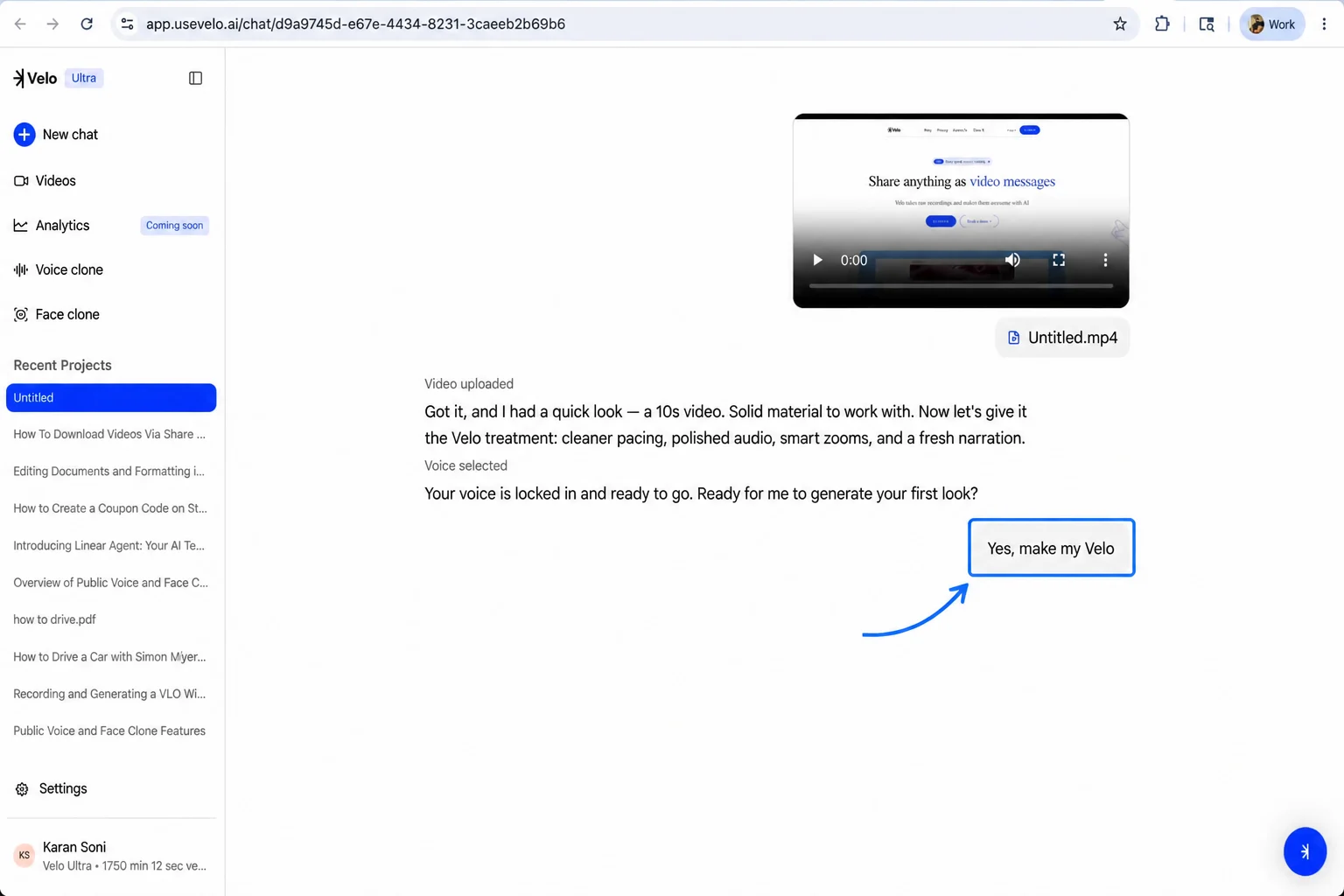
Final generation prompt
The platform will then apply the Velo treatment - including cleaner pacing, polished audio, and smart zooms - and will notify you once the finalized video is ready for viewing.