Accessing the Face Clone Gallery
Step 1: Select Face clone from the left-hand navigation panel. Step 2: On the Face Clone dashboard, select the Create face clone button.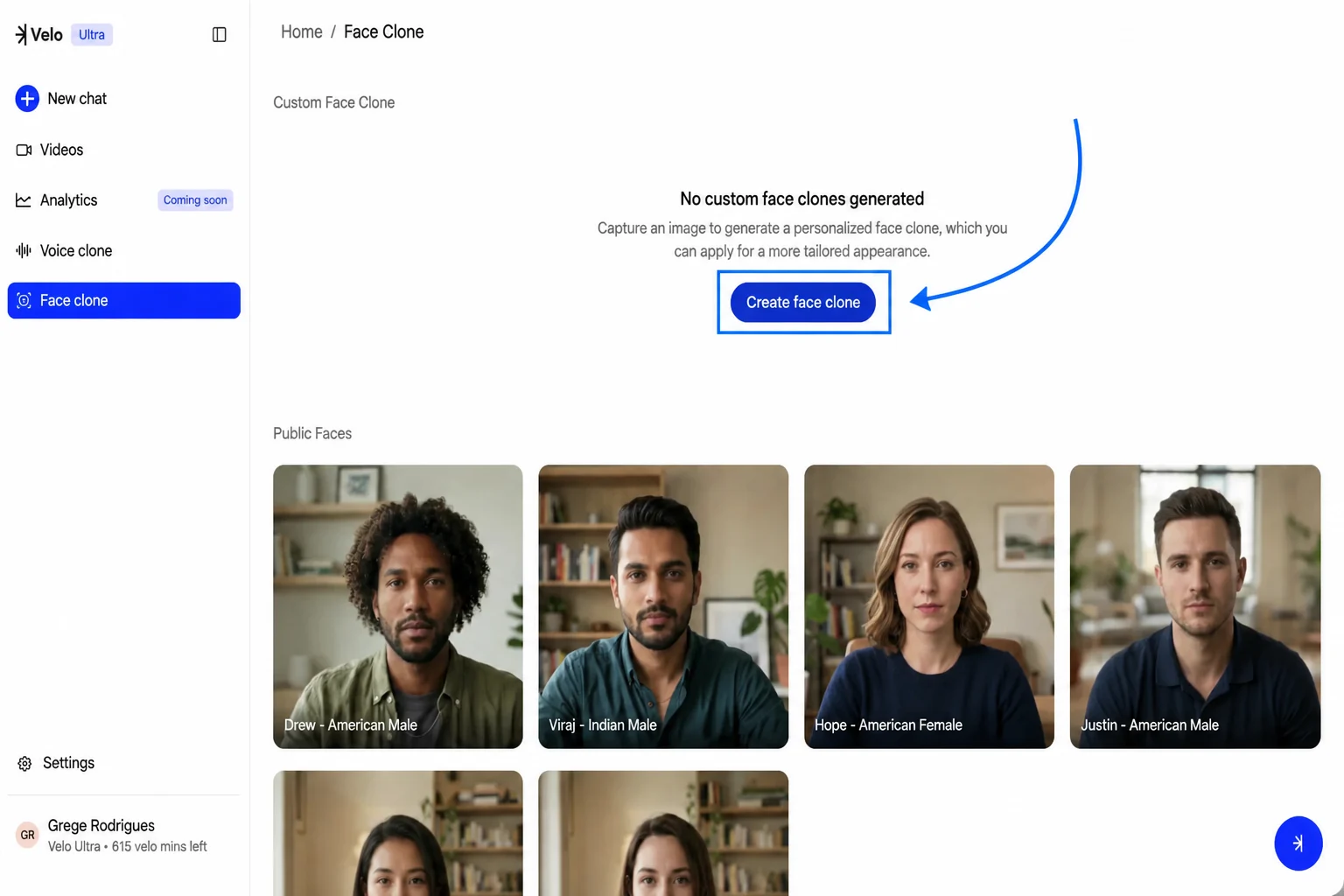
Capturing Your Image
Step 1: Enter a name for your new clone in the Name your face clone field. Step 2: Select Click picture. Step 3: When prompted by your browser, allow camera access to initialize the capture interface. Step 4: Align yourself within the frame and follow the on-screen countdown to take your photo.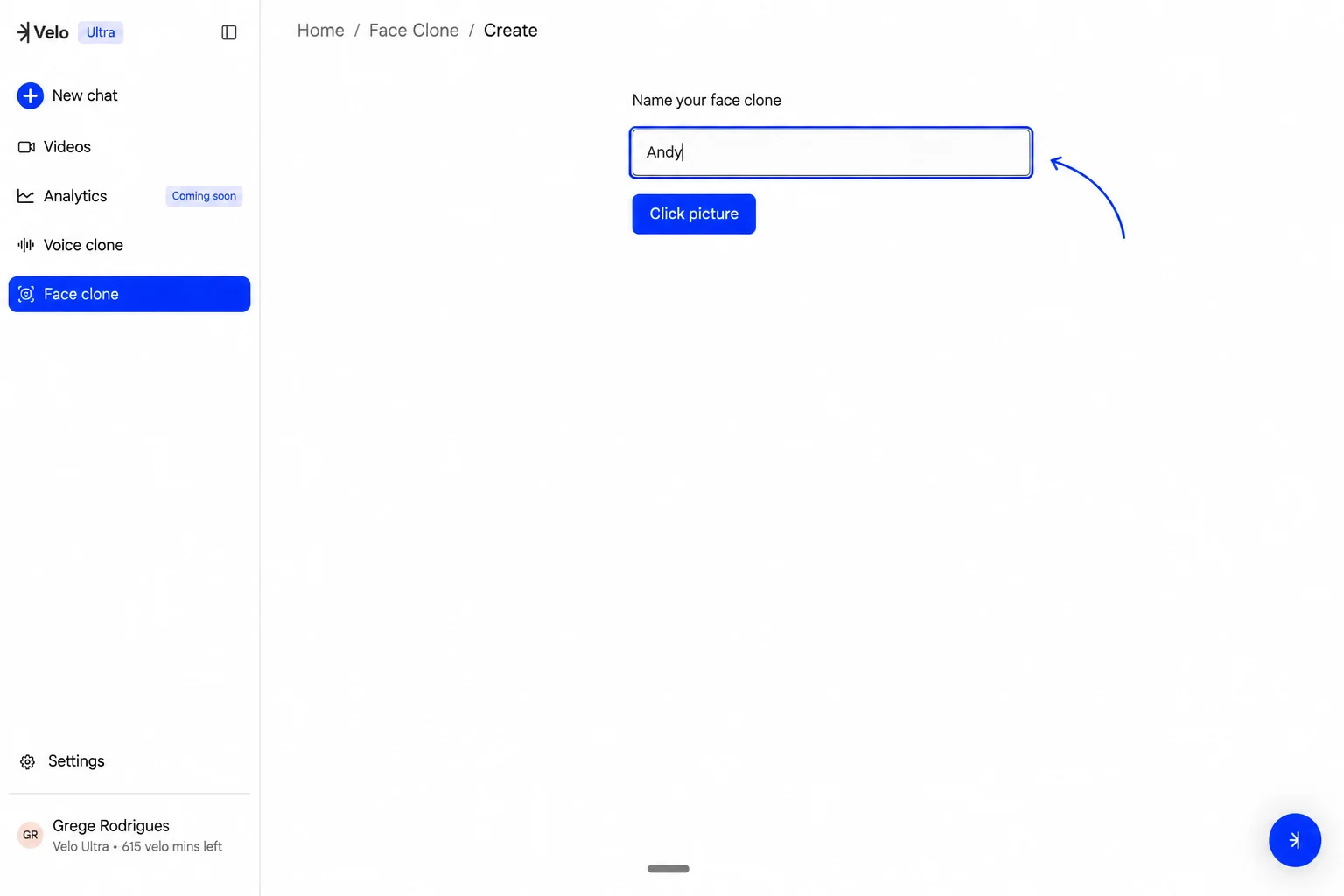
Customizing the Background
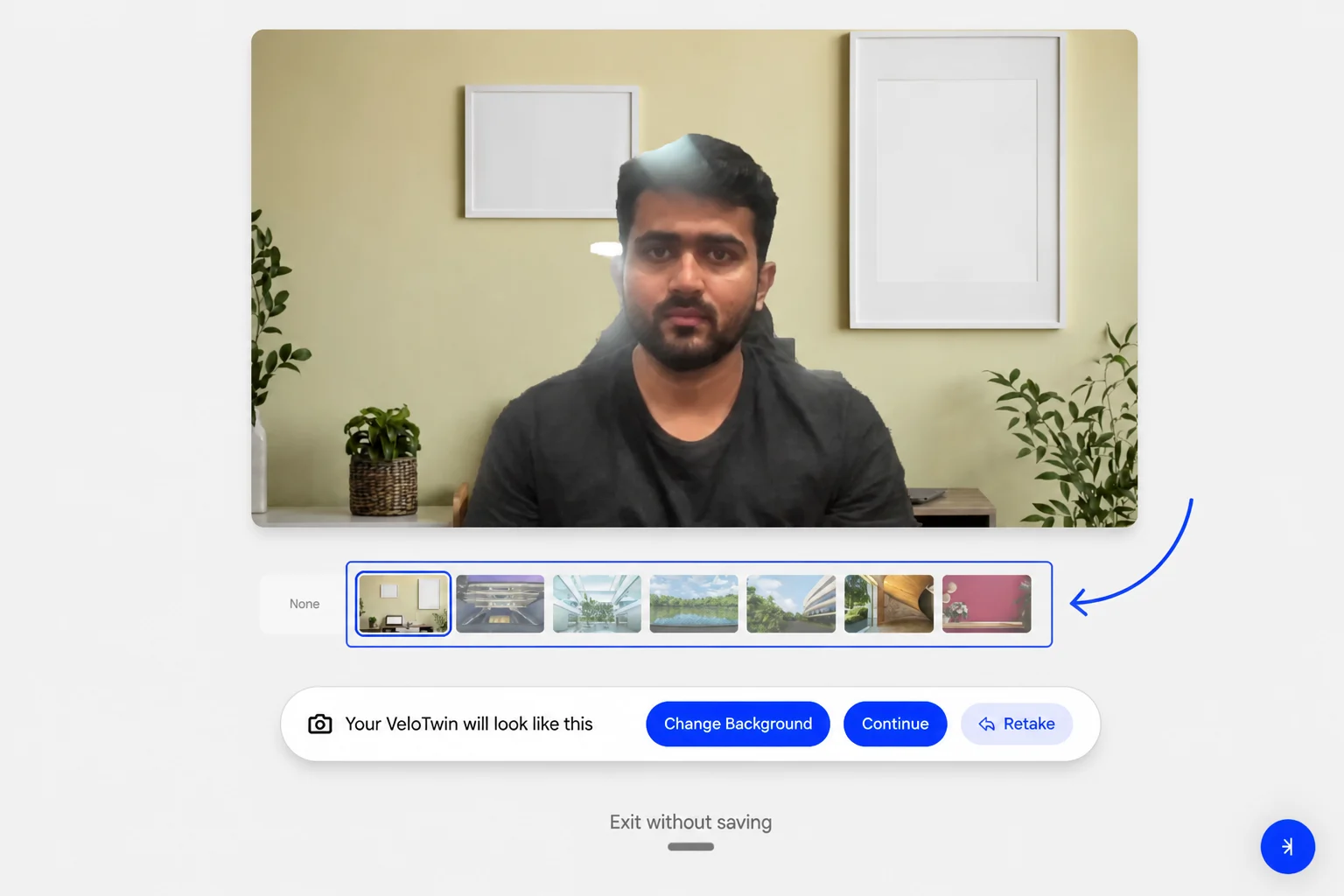
Once your picture is captured, the system provides several options to refine the look of your VeloTwin. You can browse through various environmental presets - such as an office setting, by selecting Change Background. If the initial capture isn’t ideal, select Retake to try again. When satisfied with the preview, select Continue to save the clone.